Introduction:
Windows Firewall is an application of Microsoft windows that filters incoming/outgoing information of your system from the Internet and blocking potentially harmful programs.Users need to add a program to the list of allowed programs to allow it to communicate through the firewall. When using a public network, Windows Firewall can also secure the system by blocking all unsolicited attempts to connect to your computer.
In this article,We will explain you how to open a port in the Windows firewall for TCP access
Steps to open a port
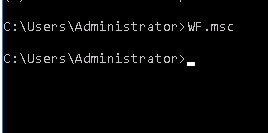
Step 1 : On Start menu, click Run, type WF.msc, and then press Enter.
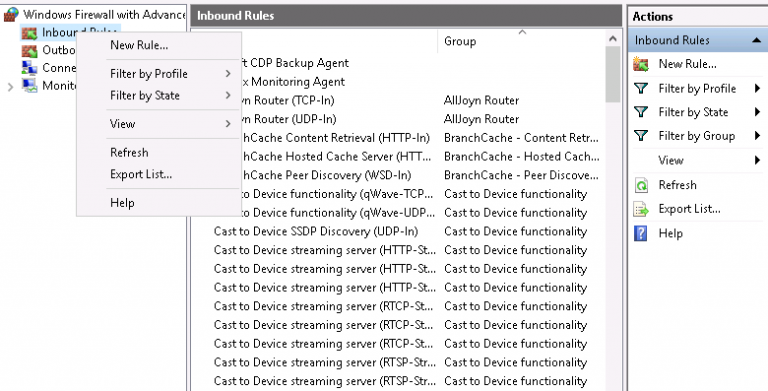
Step 2 : In Windows Firewall with Advanced Security Panel, in the left Pane, right-click Inbound Rules, and then click New Rule in the action panel.
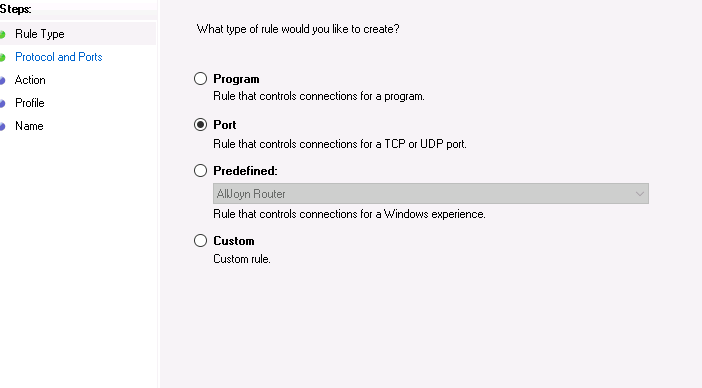
Step 3 : You will get a Rule Type dialog box, select Port, and then click Next.
Step 4 : On Protocol and Ports dialog box, select TCP. Select Specific local ports, and then type the port number. Click Next. (Note: On below image 3306 is shown just for an example,You need to specify the port which you are opening)

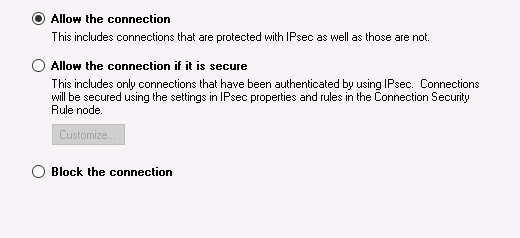
Step 5 : In the Action dialog box, select Allow the connection, and then click Next.
Step 6 : In the Name dialog box, type a name and description for this rule, and then click Finish.
